The best way to stack your monitors for dual-screen setups
I remember the exact moment my neck finally gave out. It was 4:13 PM on a Tuesday, and a sharp, electric heat flared right between my shoulder blades, radiating straight up to my skull. I had been sitting at my desk for six hours, constantly pivoting my head back and forth like a spectator at a tennis match between my two side-by-side monitors. That night, desperately searching for relief, I realized my horizontal screen layout was slowly destroying my spine. If you have ever suffered from that deep, grinding fatigue at your desk, you might have tried to adjust your monitor to stop the 4 pm neck burn, but sometimes just changing the angle of a side-by-side setup is not enough. Today, we are going to solve this issue once and for all by exploring why stacking your monitors vertically is the ultimate game-changer for your posture and productivity.
Your Side-by-Side Setup is Secretly Wrecking Your Spine
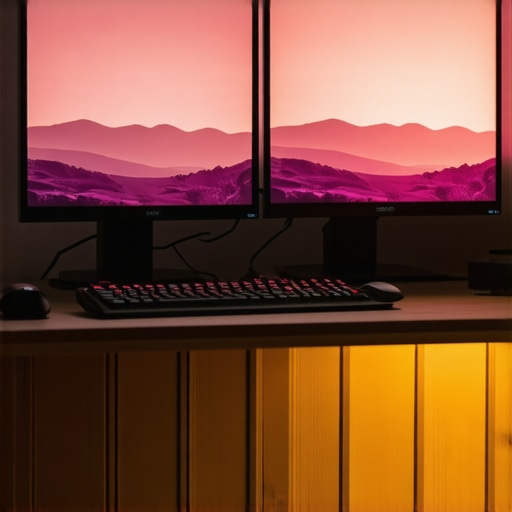
When I first got my second monitor, I did what everyone else does: I placed it right next to the first one. It felt incredibly high-tech. But after months of persistent neck pain, I learned that horizontal setups force your cervical spine into constant micro-rotation. Your neck is simply not designed to hold a heavy head at an angle for hours on end. In fact, a study by the International Journal of Industrial Ergonomics highlights that repetitive lateral neck rotation significantly increases muscular strain and fatigue compared to vertical eye movements. When I finally stacked my screens, putting the secondary monitor directly above the primary one, my daily discomfort vanished almost overnight. I stopped twisting. Instead, I used simple, gentle vertical eye tracking.
Is Vertical Monitor Stacking Actually Worth the Adjustment Period?
It is completely normal to feel skeptical about placing one screen on top of the other. Won’t you have to look up and strain your neck anyway? This is actually the biggest mistake I made when I first attempted vertical stacking. I mounted the top monitor way too high, forcing myself to look up at a steep angle, which is just as bad as looking sideways. The secret lies in the correct alignment: your primary screen should sit slightly lower than usual, with the top of that screen at eye level, allowing your secondary monitor to sit just above it with a slight downward tilt. This setup keeps your neck in a neutral, relaxed position. Have you ever experienced that brutal, end-of-day burning sensation in your shoulders from staring at your dual screens? If you want to learn more about how to structure your overall workstation for long-term health, check out my guide on how to sit at your desk with zero back fatigue.
Step-by-Step Guide to Stacking Your Monitors Without Straining Your Spine
Think of your neck like a heavy bowling ball resting on a thin, flexible rod. Every time you tilt or turn that ball to look at a secondary screen, the muscles in your upper back must work twice as hard to keep your head from falling. This constant, micro-level muscular pulling is exactly why your shoulder blades feel like they’re burning after typing for hours on end. To properly transition to a vertical setup, you cannot simply slap one monitor on top of the other and hope for the best. You need to recalibrate your viewing angles to respect human mechanics.
Find Your Real Eye Level first
I made the classic mistake of mounting my secondary screen high above my primary screen, which was already at eye level. By lunchtime, my upper neck felt like it was on fire. To fix this, sit comfortably in your chair with your shoulders dropped. Close your eyes, take a deep breath, and open them. Where your gaze naturally lands is your true eye level. This exact spot is where the top bezel of your bottom monitor should sit. This ensures your primary screen is in a slight downward viewing arc, which is much more natural for your eyes and cervical spine.
Tilt the Top Screen Down Like a Canopy
Once your main screen is lowered, mount your secondary monitor directly above it. The absolute secret to making this setup pain-free is the angle of the top screen. You must tilt the top monitor downward at roughly a 15-to-20-degree angle. This mimics the natural curve of your peripheral vision. When I first angled my top screen down, it felt like looking at a cockpit instrument panel. The change was instant; instead of craning my neck backward to read a document, I only had to shift my eyes upward. By matching the monitor’s angle to my natural visual field, I avoided the hyperextension that triggers chronic tension. 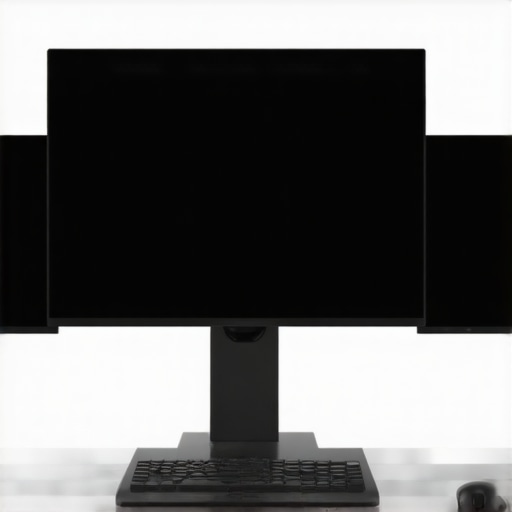
Keep Your Most Important Tasks Low
A vertical setup is only as good as your window management. Your primary monitor must host the software you use 80% of the day, such as your email client, word processor, or main development environment. Keep your secondary, top screen strictly for passive monitoring—like your calendar, music player, or team chat. If you find yourself constantly staring at the top screen for hours on end, you will inevitably aggravate your neck. If you are already struggling with persistent upper body stiffness from years of poor desk habits, learning chiropractic secrets to boost neck comfort and function can help you restore proper joint mobility. Move your active tasks down, and let your eyes do the moving, not your neck.
The Mobility Myth That Keeps Your Neck Locked Up
When we struggle with desk-induced discomfort, the default advice we always hear is to simply move more. Everyone tells you to stretch your neck, roll your shoulders, and roll your neck in circles to stay loose. But in my experience, blind mobility is actually a massive trap. If you are constantly stretching a neck that is already hyper-mobile and compensating for a stiff mid-back, you are only destabilizing your spine. When you stretch muscles that are tight because they are desperately trying to protect an unstable joint, your brain responds by locking them up even tighter. This is why your daily stretching routine feels great for exactly ten minutes before the burning returns. Instead of aggressive stretching, focusing on targeted stability and looking at how the entire spinal column moves as a single unit is what actually yields long-term relief. Adjusting your monitors vertically is a great structural starting point, but we must also address the deep functional mistakes we make when attempting to heal our bodies.
Why Does Stretching My Neck Seem to Make the Tension Worse?
A common misstep is confusing a muscle that feels tight with a muscle that needs to be stretched. According to a clinical study published in the Journal of Manipulative and Physiological Therapeutics, chronic neck tension is frequently a secondary symptom of underlying joint dysfunction and poor scapular stabilization, not short muscles. When you aggressively stretch your neck, you risk over-elongating the ligaments, which forces your deep cervical stabilizers to work overtime just to keep your head upright. This constant strain is the exact reason why why you should never crack your own neck in the morning or force painful end-range stretches. If you want to truly restore your range of motion without triggering a protective muscle spasm, you have to approach your recovery through structured, gentle alignment. Understanding how these mechanics interact is key, and exploring how chiropractic care enhances movement can help you safely rebuild that joint stability.
The Upper Thoracic Trap and How to Escape It
The real culprit behind most chronic neck pain is actually a frozen mid-back. When your upper thoracic spine loses its ability to extend and rotate because you are hunched over a keyboard, your neck has to bend excessively just to keep your eyes looking forward. If you do not address this mid-back stiffness, no amount of monitor adjustments or neck stretches will save you. To break this cycle, you need to mobilize the thoracic spine while keeping the neck completely neutral.  Incorporating simple, passive chest openers and thoracic extensions over a foam roller will take the mechanical pressure off your upper cervical joints. If you are ready to stop chasing symptoms and finally fix the root cause, learning the proper techniques to unlock neck pain relief will give you the tools to restore your posture from the shoulders up. Have you ever fallen into the trap of over-stretching your neck only to have it feel tighter an hour later? Let me know in the comments below!
My Personal Toolkit for Long-Term Spinal Maintenance
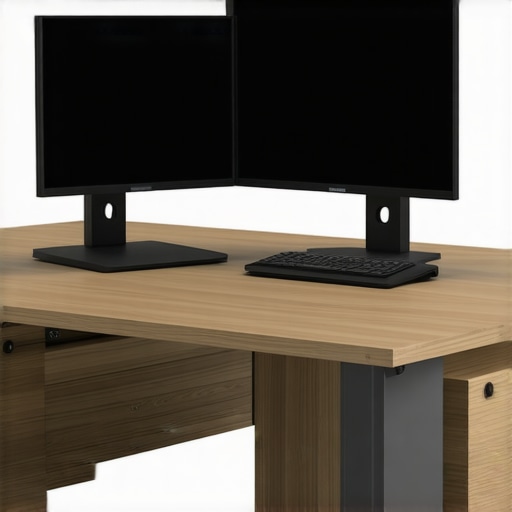
Over the years, I have tested dozens of dual-monitor arms, mounts, and software utilities. I discovered that a vertical setup is only as good as the hardware supporting it. Cheap, flimsy stands are the enemy of your spine; they sag under the weight of your top monitor, slowly pulling the screen out of that optimal 15-to-20-degree downward tilt. Personally, I use a heavy-duty, gas-spring dual monitor mount—specifically the Ergotron LX Dual Stacking Arm. This tool is highly customizable, allowing me to lock the bottom monitor just above the desk surface while holding the top monitor securely at the exact downward angle I need. When your hardware is rock-solid, you eliminate the micro-adjustments and squinting that cause you to lean forward, ensuring you relieve neck back discomfort using these expert methods automatically throughout the workday.
Alongside robust hardware, I rely heavily on virtual window management. Software like FancyZones (part of Microsoft PowerToys) is a crucial part of my daily routine. It allows me to create customized, permanent zones on my bottom screen. I place my primary browser and document editor dead-center, keeping my eye line perfectly level. On the top screen, I keep static dashboards like Slack or Spotify, which only require a split-second glance. By combining specialized hardware with smart window-snapping software, I have completely automated my posture, preventing the repetitive lateral twisting that leads to painful muscle spasms.
How do I maintain my spinal alignment at a desk over time?
Maintaining a healthy spine is not a one-off adjustment; it is an ongoing practice. The most common mistake I see people make is setting up a perfect vertical monitor layout, only to slowly slide back into a deep slouch as the afternoon fatigue sets in. To maintain this setup over time, you must routinely audit your posture. Your body will adapt to whatever position you hold most frequently. If you find yourself constantly leaning forward to read small text on your secondary monitor, you need to increase your display scaling to 125% or 150%. Dr. Kelly Starrett, a renowned physical therapist and author of Becoming a Supple Leopard, emphasizes that structural ergonomics must be paired with daily, active decompression of the spine to prevent tissue adaptation. In addition to hardware adjustments, utilizing targeted movements like the brueggers relief move to reverse hours of hunched sitting can help counteract the cumulative physical stress of desk work.
Looking ahead, I predict that we will soon see adaptive, AI-driven monitor mounts that subtly shift their height and tilt throughout the day based on your eye level and spinal fatigue markers. Until then, we must take conscious control of our workspaces. To take your healing a step further and target the deep physical damage caused by years of poor posture, incorporating professional guidance can be incredibly powerful. Learning chiropractic techniques unveiled by clinical experts will give you the precise diagnostic tools to unlock stubborn joint restrictions and keep your neck moving freely. My challenge to you today is simple: download a window manager or adjust the physical tilt of your top monitor by just 5 degrees tonight, and observe how much lighter your neck feels tomorrow morning.
What Experts Won’t Tell You About Spinal Compensation Patterns
When I first started tweaking my workspace, I fell into the trap of thinking about my spine as a collection of isolated parts. I assumed a stiff neck meant I needed to focus solely on my neck. The hardest lesson I learned was that your body operates like a highly coordinated suspension bridge. When you make a structural change—like switching from horizontal screens to a vertical alignment—your entire muscular system has to recalibrate. If you simply stack your monitors but ignore the alignment of your lower body, you are just moving the stress down your spine. True, long-term comfort only occurs when your pelvic foundation, thoracic spine, and cervical gaze are in perfect harmony.
Here are the three lightbulb moments that completely changed how I manage my physical health at a computer:
- Symptom chasing is a dead end: The spot where you feel the burning sensation is almost never the actual source of the problem. It is usually just the weak link that is screaming the loudest because it is compensating for a frozen joint elsewhere.
- Passive rest will not fix structural adaptation: Simply taking a break or laying down does not erase the adaptive shortening of your chest muscles and the weakening of your deep neck stabilizers. You must actively introduce correct movement patterns to reverse the damage.
- Your eyes dictate your skeletal posture: Your motor control system is hardwired to keep your eyes parallel to the horizon. If your screens force your eyes into a perpetual tilt, your spine will bend itself into knots to accommodate that visual target. If you are struggling to find that perfect balance, learning how understanding back pain connects to your daily habits can help you make sense of these complex physical patterns.
The Workspace Tools I Personally Rely On
I do not believe in generic ergonomic ratings. Through trial, error, and a lot of muscle spasms, I have built a highly specific toolkit that keeps me pain-free. Aside from a heavy-duty vertical monitor arm, here are the resources and tools that genuinely made a difference in my recovery:
- Microsoft PowerToys (FancyZones): This free software utility is absolutely essential for vertical stacking. It allows me to snap windows into custom, static layouts so my eyes never have to wander or search for active programs, keeping my primary gaze perfectly centered.
- A Dense Foam Roller: I use this daily to perform gentle thoracic extensions. Rolling out my mid-back before and after long typing sessions ensures my thoracic spine stays mobile, taking the mechanical burden off my neck.
- Becoming a Supple Leopard by Dr. Kelly Starrett: This book completely redefined how I view joint mechanics and daily athletic movement. It provides a highly practical blueprint for diagnosing your own movement restrictions and mobilizing tissues safely.
- Professional Spinal Assessments: No gadget can replace hands-on diagnostic care. Working with a specialist to identify my specific joint restrictions was the turning point in my health journey. If you want to dive deeper into targeted structural relief, exploring how neck pain no more can become your reality through specialized physical care is the absolute best next step.
Make the Shift and Take Control of Your Daily Health
You do not have to accept chronic neck burn as an inevitable cost of doing business at a computer. Your body is incredibly resilient, and it wants to heal—you simply have to stop fighting its natural mechanics. By stacking your monitors vertically, tilting your top screen downward like a canopy, and actively mobilizing your mid-back, you can eliminate the constant micro-rotations that wear down your spine. Do not wait for next Monday to make a change. Start by adjusting your screen angles today, listen to what your body is trying to tell you, and take that first step toward a totally pain-free workday.
Have you ever tried vertical monitor stacking, or are you still struggling with a side-by-side setup? Let me know your experiences in the comments below!